
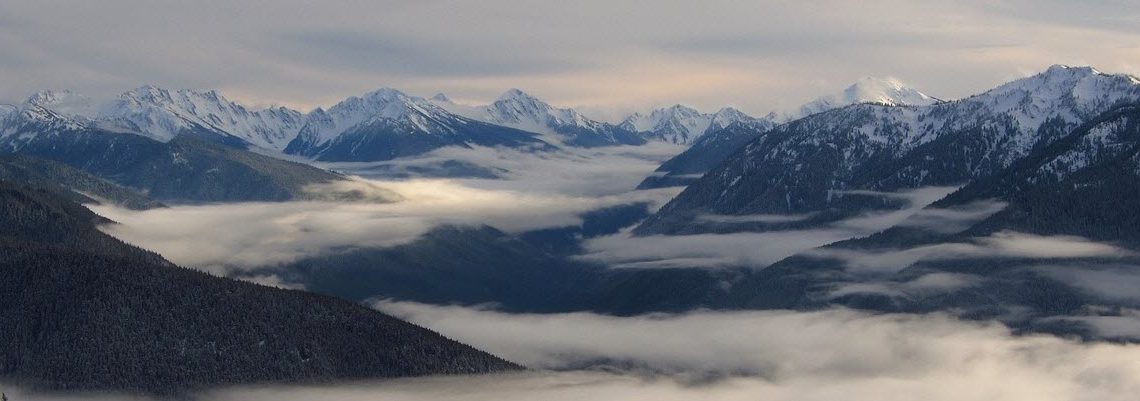
The State of Washington is the northwestern-most state of the contiguous United States. It is often referred to as Washington State rather than just Washington, to avoid mixups with the city Washington D.C. which is located in the eastern United States. Both Washington State and the city Washington D.C. were named after George Washington, the first president of the United States.
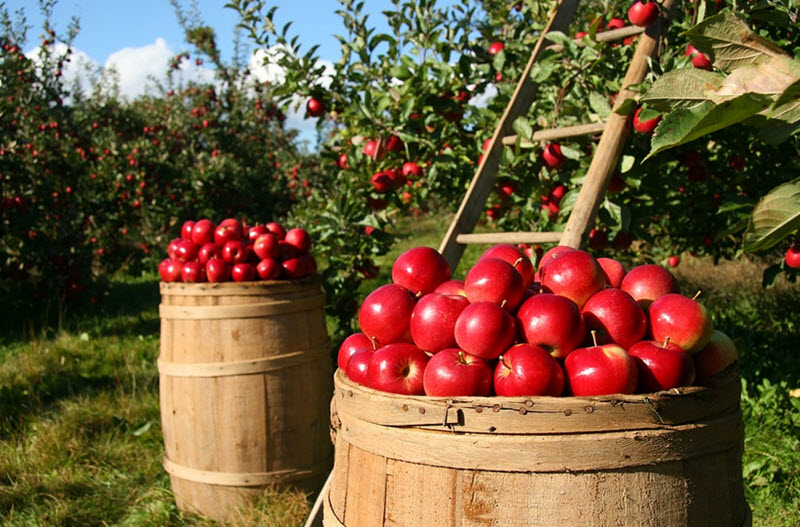
Washington State is part of a region known as the Pacific Northwest. It is renowned for its outstanding natural beauty and it attracts a lot of outdoors enthusiasts who go hiking, camping, mountain climbing, skiing, snowboarding, fishing, river rafting, and more. Over half of the state’s land area is covered in forests and approximately two-thirds of Washington’s forested lands are publicly owned. Washington is also home to a lot of beautiful pastoral and agricultural areas, including orchards. It is the nation’s main producer of apples, pears, sweet cherries and red raspberries, and also ranks high in the growing of apricots and grapes.
Seattle
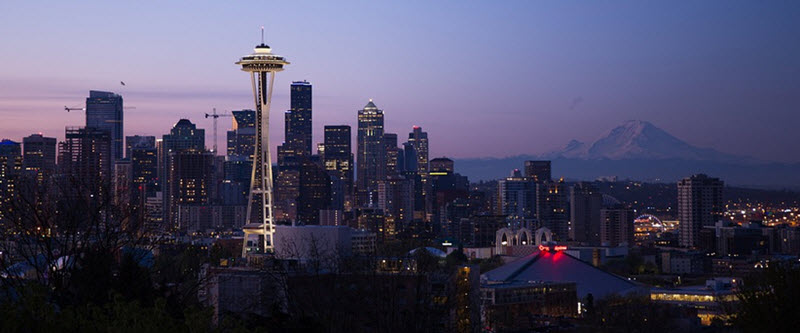
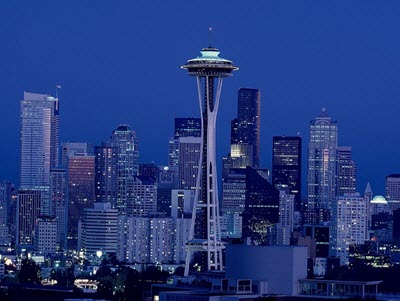 The largest city Washington State is not the capital Olympia but Seattle, a Pacific seaport located on an isthmus between Puget Sound and Lake Washington. Seattle is one of the major gateways for North American trade with Asia and is also home to many companies in the fields biotechnology, computer software and online services. With an estimated 725,000 residents as of 2018, Seattle is the largest city in the Pacific Northwest region of North America. In 2015, it was one of the five fastest-growing major cities in the U.S. The Seattle metropolitan area is home to nearly 3.9 million residents.
Nationally and internationally, Seattle is famous for its innovative music scene. During the first half of the 20th century, the city had a notable jazz district which helped develop the careers of musicians such as Quincy Jones, Ray Charles and Ernestine Anderson. In 1942, it became the birthplace of Jimi Hendrix. Towards the end of the century, Seattle was the epicentre of the new alternative rock movement grunge, with bands such as Nirvana, Pearl Jam, Alice in Chains, Foo Fighters and Soundgarden all emanating from Seattle.
Seattle is home to a lot of large companies including giants such as Microsoft and Amazon. Seattle even had a stock market, but it has been closed for a long time. An example of a famous company that used to be listed on the Seattle stock exchange is Carnation, the milk company. Carnation is now a part of the International giant Nestle. Nestle stock is now listed on the SIX Swiss Exchange.
Other companies that are based in Seattle include:
- Boeing
- Nordstrom
- Starbucks
- T-Mobile
- BinaryOptions.net
- Expedia
- Zulily
- Zillow.com
- Penny Arcade
- Getty Images
- Allrecipes.com
- PEMCO
Many of the companies listed above are publicly traded companies. You can invest in the company by buying shares in the company’s stocks. If you want to buy a stock you need an account with a broker. Always compare brokers before you decide which broker you want to open an account with. A good cheap broker makes it easier to make money on the stock market.
Geography
Where in North America is Washington State?
Washington State is located in the northwestern-most corner of the contiguous United States, bordering the Pacific Ocean to the west and Canada to the north. The northern border of the state largely follows the 49th parallel, before following marine boundaries through the Strait of Georgia, Haro Strait and the Strait of Juan de Fuca. To the south and east, Washington State borders to the U.S. states Oregon and Idaho, respectively.
A state divided by the Cascade Range
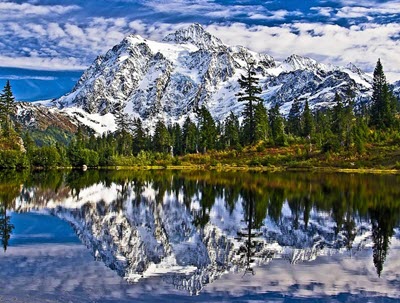 The Cascade Range runs through Washington State from north to south, dividing the state into a western part and an eastern part. Among the locals, the two parts are often referred to as the Wet Side and the Dry Side, since the western part of the state receives much more precipitation.
Western Washington State is dominated by forests, while the east have much more agriculture. This has given raise to the nicknames “Timberland” and “Wheatland”.
The volcanoes
The Cascade Range contains several volcanoes that are much taller than the rest of the range. From north to south, you can visit the active volcanoes Mt. Baker, Glacier Peak, Mt. Rainier, Mt. Saint Helens and Mt. Adams.
With a summit elevation of 14,411 feet (4,392 meters), the peak of Mt. Rainier is the highest spot in Washington State and it is covered with more glacial ice than any other peak in the contiguous U.S. Located less than 60 miles south-southeast of Seattle, it is not just the topographically most prominent mountain in the contiguous U.S. but also the volcano that the United States Geological Survey (USGS) considers most dangerous in the 48 states.
Geography of Western Washington
Most of Western Washington have a marine climate, highly impacted by the Pacific Ocean. This means comparatively mild, but wet, winters, autumns and springs. Western Washington state is a major producer of lumber, especially hemlock, Douglas fir, white pine, ponderosa pine, spruce, larch and cedar.
In addition to being bordered by the Cascade Range, Western Washington is also home to the Olympic Mountains, located far west on the Olympic Peninsula. The Olympic Peninsula is one of the few places in continental United States were you can find temperate rainforests.
The place in Western Washington that receives the most precipitation in an average year is Lake Quinault on the Olympic Peninsula, where you can expect more than 130 inches of precipitation each year.
Geography of Eastern Washington
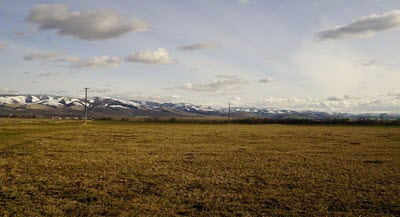 Eastern Washington has a lot of land that is used for farming; the natural grasslands of the Palouse region in southeastern Washington has for instance been mostly converted into farmland.
Eastern Washington is home to the Okanogan Highlands, the Kettle River Range, and the Selkirk Mountains – all located in northeastern Washington. In southeastern Washington, you’ll find a section of the Blue Mountains range. The Blue Mountains range is chiefly located within the northeastern Oregon, but parts of it stretches into southeastern Washington.
Compared to Western Washington, Eastern Washington has a dry climate and the region includes large areas of semi-arid steppe landscape as well as a few deserts. One of the driest parts is the Hanford reservation where only 6 to 7 inches of precipitation falls during an average year, because the reservation is in the rain shadow of the Cascades. The farther away from the Cascades we move in Eastern Washington, the less arid it gets, and many places near the border to Idaho gets well more than 20 inches of precipitation in an average year.
Short facts about the State of Washington
| Name | State of Washington |
| Abbreviations | WA
Wash. |
| Demonym | Washingtonian |
| Total area |
71,362 square miles |
| Latitude |
45° 33′ N to 49° N |
| Longitude |
116° 55′ W to 124° 46′ W |
| Time zone |
Pacific: UTC -8/-7 |
| Capital | Olympia
Coordinates: 47°2′33″N 122°53′35″W |
| Largest city | Seattle
Coordinates: 47°36′35″N 122°19′59″W |
| Largest metropolitan area | Metro Seattle
(formally known as the Seattle–Tacoma–Bellevue, WA Metropolitan Statistical Area) |
| Total population | Approximately 7.4 million (2017 estimate) |
| Median household income | $67,243 (2015) |
Official insignia
| Song | Washington, My Home |
| Gemstone | Petrified wood |
| Food | Apple |
| Vegetable | Sweet onion |
| Tree | Western Hemlock |
| Flower | Rhododendron |
| Grass | Bluebunch wheatgrass |
| Land mammal | Olympic marmot |
| Sea mammal | Orca |
| Bird | American goldfinch |
| Fish | Steelhead trout |
| Amphibian | Pacific chorus frog |
| Insect | Green Darner |
| Soil | Tokul |
| Tartan | Washington state tartan |
The ten most populous cities and towns in Washington State
Source: Population estimates released by the U.S. Census Bureau in May 2017.
Position
| Name and population size | |
| 1 | Seattle – 704,352 |
| 2 | Spokane – 215,973 |
| 3 | Tacoma – 211,277 |
| 4 | Vancouver – 174,826 |
| 5 | Bellevue – 141,400 |
| 6 | Kent – 127,514 |
| 7 | Everett – 109,043 |
| 8 | Renton – 100,953 |
| 9 | Federal Way – 96,757 |
| 10 | Yakima – 93,986 |